Measures Widget
Measures widgets track any number you want to record in a workout, such as strength exercises, recovery drills, or performance benchmarks. For example:
- Weighted pull-up (kg added)
- Hangboard max hang time (seconds)
- Deadlift weight (kg)
- Moonboard benchmark count
- Wrist curl weight (for recovery)
Creating a Measure
Add the widget
When editing any workout, click Add Widget and select Measures. Or go to Workouts → Widgets to create one that can be used across workouts.
Configure the fields
Enter:
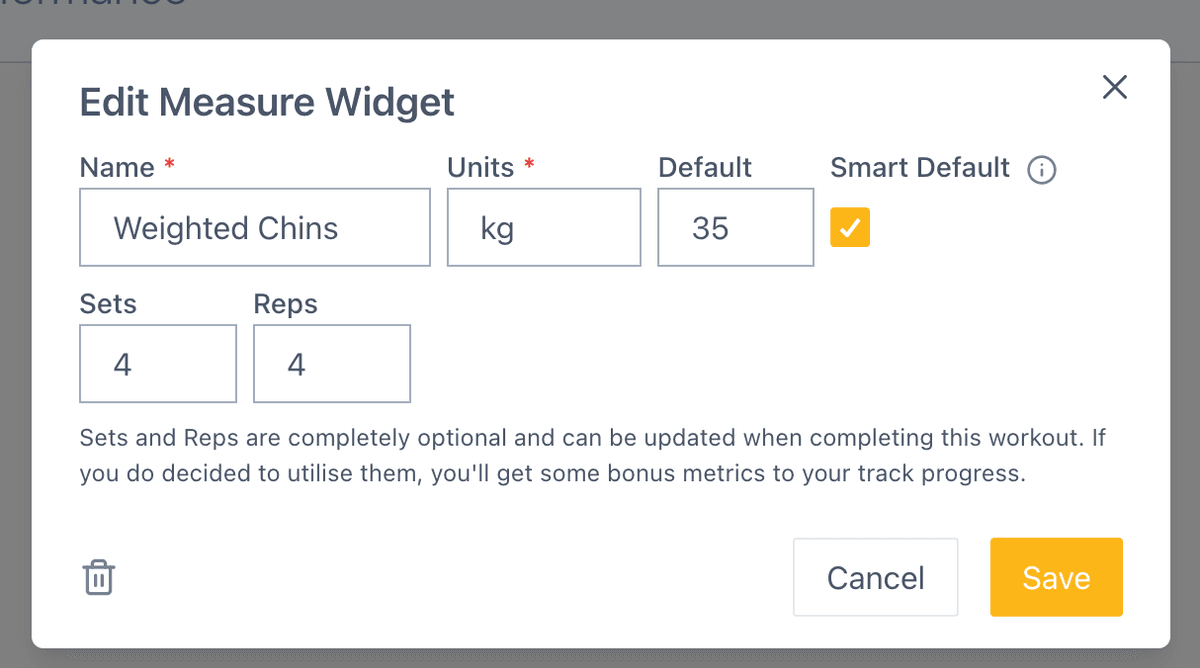
- Name — What you’re measuring
- Unit — kg, seconds, reps, etc.
- Default value — Optional starting point
- Sets and reps — If applicable
Enable Smart Default (optional)
When enabled, the default value auto-fills with your last recorded value for this measure.
Recording Data
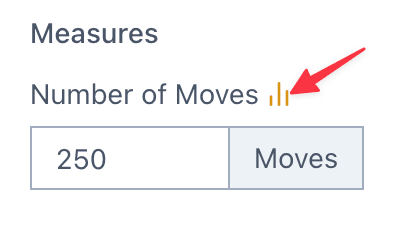
When completing a workout with measure widgets, enter your values for each. Click the graph icon to see your previous results, which helps you plan targets before your session.
Archiving a Measure
On the web, go to Workouts → Widgets, open a custom measure’s menu (⋮), and select Archive. The measure keeps its recorded data and stays on workouts that already use it, but it no longer appears when you add a widget.
Only measure widgets support archiving. Common measures and coaching or templated measures cannot be archived.
To restore or delete a measure, open the overflow menu on Workouts → Widgets and select Archived Widgets. Choose Unarchive Measure to return it to your widget picker, or Delete Measure to permanently remove the measure and all values recorded for it.
Importing or using a template with the same measure name also unarchives the archived measure.
Viewing Progress
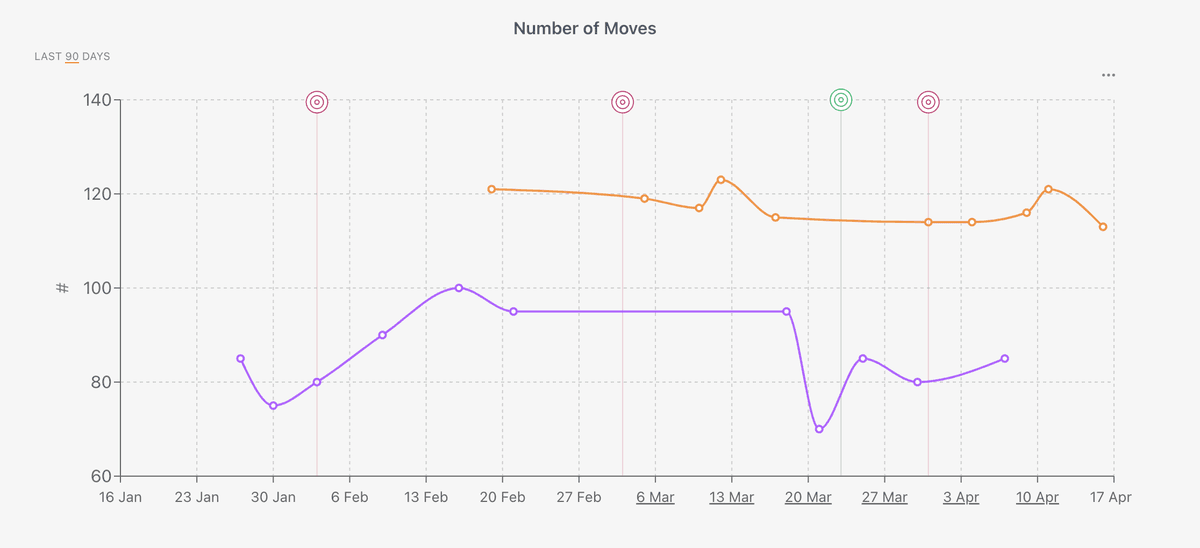
All measure data appears in Metrics → Custom Measures. Here you can:
- View graphs of each measure over time
- Compare measures used across multiple workouts
- Analyse sets and reps data when applicable
Related
- Slider widget — Track subjective ratings like motivation and fatigue
- Logbook — Log climbing sessions with grades and styles
- Widgets overview — See all available widget types